On this page
Printed menus age quickly. Momo prices go up, a dish runs out for the season, the chef adds a new thakali set, and suddenly the laminated menu on every table is wrong. Reprinting costs money and nobody wants to do it every month.
A QR code menu solves this. Guests scan a code on the table with their phone camera and see your current menu, prices and specials. This guide covers how to set one up for a restaurant, café, bakery or cloud kitchen in Nepal, and how to make it more than just a PDF.
What a QR menu is (and is not)
A QR menu is a code printed on a table stand, sticker or wall that opens your menu on the guest's phone. No app is needed; the normal camera on any recent iPhone or Android phone reads QR codes.
It does not have to replace your paper menu entirely. Many places keep a few printed menus for older guests or anyone whose phone battery is dead. The QR menu is the one that is always up to date, and it can do things paper cannot: link to WhatsApp, show today's specials, open directions and collect orders for delivery.
Three ways to set up your menu
There is no single right answer. Pick the option that matches how often your menu changes and how much time you have.
Option 1: a menu page with dishes and prices
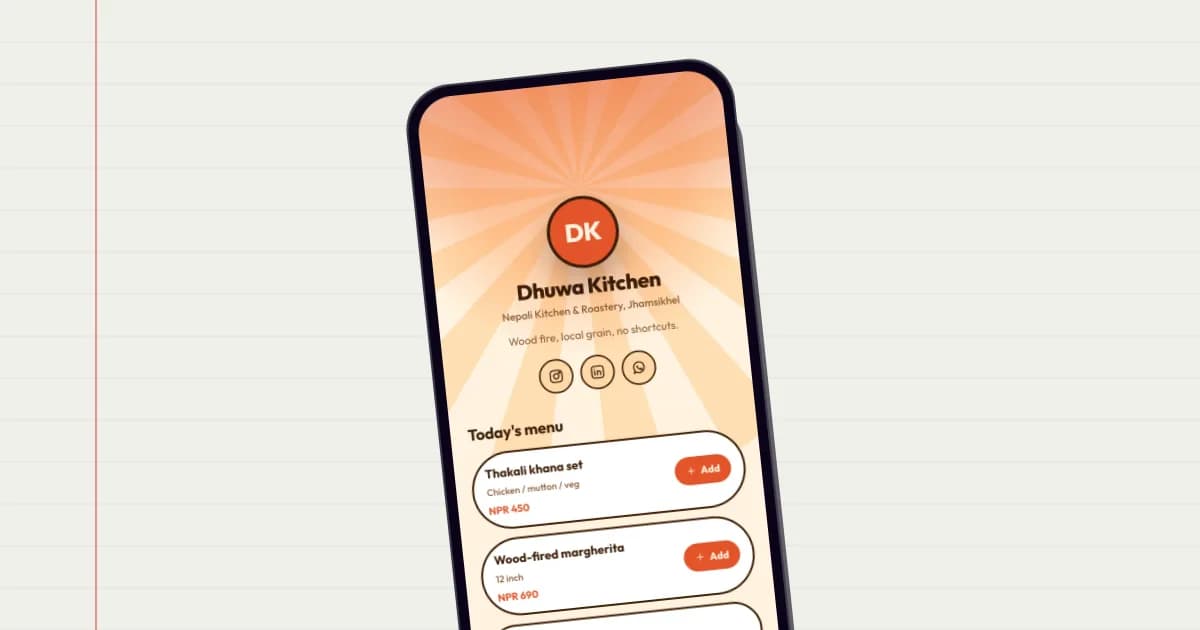
Build your restaurant's page with each dish as a product block: name, a short description, price and a photo if you have one. Group them under headings like Breakfast, Momo, Thali and Drinks. This is the easiest option for guests to read on a phone, because there is no zooming into a PDF.
The restaurant template shows how this looks, with a menu section, a full menu PDF, a table booking link and a map.
Option 2: a menu PDF
If you already have a designed menu, export it as a PDF and add it to your page as a file. It is quick, but PDFs are harder to read on small screens, so keep the font large and the file small (under 2–3 MB) so it opens fast on mobile data.
Option 3: both
Most restaurants end up here: the popular dishes and today's specials as blocks at the top of the page, and the full menu as a PDF underneath for anyone who wants every item.
What else to put on the page
The guest has your page open on their phone. Use that moment for more than prices.
- A WhatsApp button for delivery and takeaway orders, and for table reservations.
- A map pin so first-time guests can find you, and so they can send the location to friends.
- Opening hours and whether you close on particular days or festivals.
- Links to your Instagram or TikTok, where you post new dishes.
- Links to delivery apps if you use them, next to your own WhatsApp ordering.
- A Save Contact button so regulars have your number saved properly, not as "momo place near chowk".
Taking orders through the menu
On a golinq.me page, dishes added as product blocks can go into a simple basket. When the guest is ready, the basket opens WhatsApp with the order already written out, ready to send to your number. You confirm in the chat as you normally would.
If you run takeaway or delivery at volume, the Business plan adds a proper shop: products with photos, sale prices, stock counts that go down as orders come in, an orders inbox where each order has a reference and a status (new, confirmed, delivered, cancelled), and the choice for the customer to also send the order to you on WhatsApp. There is no online card payment on the page; customers pay on delivery or directly, the way most food orders in Nepal already work.
Which QR code to print
Your golinq.me page comes with its own QR code, and that is often all a restaurant needs. The code opens your page, and because you can edit the page any time, the menu behind the code is always current.
If you want the code to open something else, such as a menu PDF on its own or a special festival menu page, use a dynamic QR code from the QR Studio (Professional plan and above). The code on the table stays the same, and you change where it points from your dashboard. You also see how many scans each code gets, by day and by hour, which tells you roughly when guests are looking. The Studio has a dedicated Restaurant menu type for exactly this, and a Wi-Fi type that lets guests join your network without anyone reading out the password.
Printing codes that actually scan
Most scanning problems come from printing, not from the code. A few rules keep things simple:
- Print large enough. For a table stand scanned from a seat, aim for at least 3–4 cm across. For a wall or window poster read from further away, go bigger.
- Keep contrast high. Dark code on a light background. Avoid printing on glossy gold or dark wood without a white box behind the code.
- Leave a quiet border. Keep a plain margin around the code; do not let the design run into it.
- Say what it does. "Scan for menu and WhatsApp orders" gets more scans than a bare code.
- Test before you print 30 of them. Print one, place it on a table, and scan it with two or three different phones in normal restaurant lighting.
From the QR Studio you can download codes as PNG, SVG or a print-ready PDF, and add your logo in the centre. Keep the logo small so the code still reads easily.
Keeping the menu fresh
The whole point of a QR menu is that it stays current, so make updating it part of the routine. When the kitchen changes a price, change it on the page the same day. Before festivals like Dashain and Tihar, add a festival special at the top and remove it afterwards. If an item runs out, hide it rather than letting guests order it.
Once a month, open your page as a guest would, on mobile data rather than your Wi-Fi, and check it loads quickly and every button works.
Make your golinq.me page today
Pick your handle, start from a template for your trade, and share it by QR, NFC or link. The Personal plan is free; see pricing for bookings, the shop and dynamic QR codes.