On this page
You have probably seen someone at a meeting or expo tap a card on another person's phone, and the other phone immediately shows a contact page. That is an NFC business card. It looks like a normal card, but it has a tiny chip inside that hands the phone a web link.
This guide explains how NFC cards work, what you need to buy, how to put your golinq.me link on one, and the small details that make the difference between a card that impresses people and one that does nothing when tapped.
How an NFC card works
NFC stands for near-field communication. It is the same short-range technology phones use for contactless payment. An NFC business card has a small chip and antenna sealed inside the plastic, wood or metal. The chip has no battery; the phone powers it for a moment when the two are a few centimetres apart.
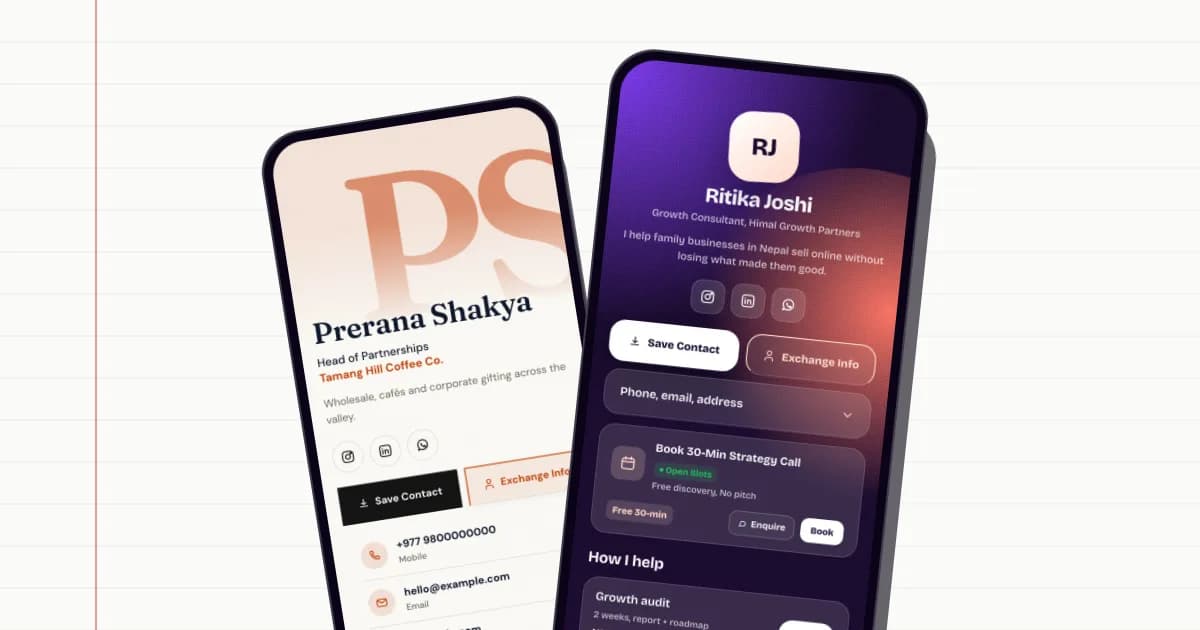
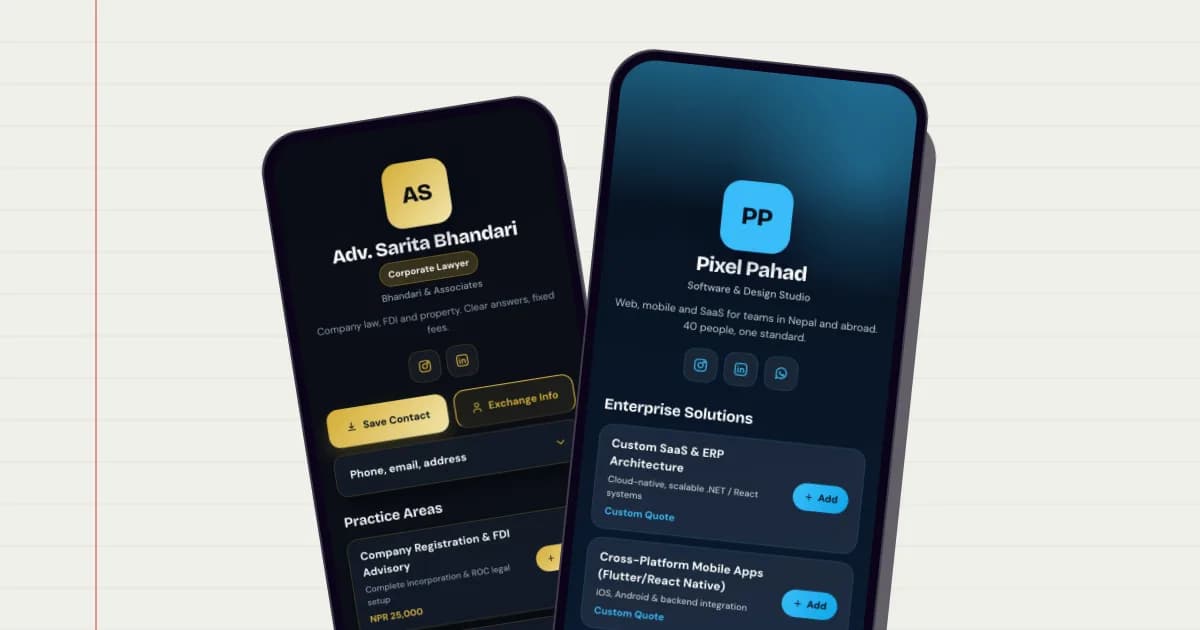
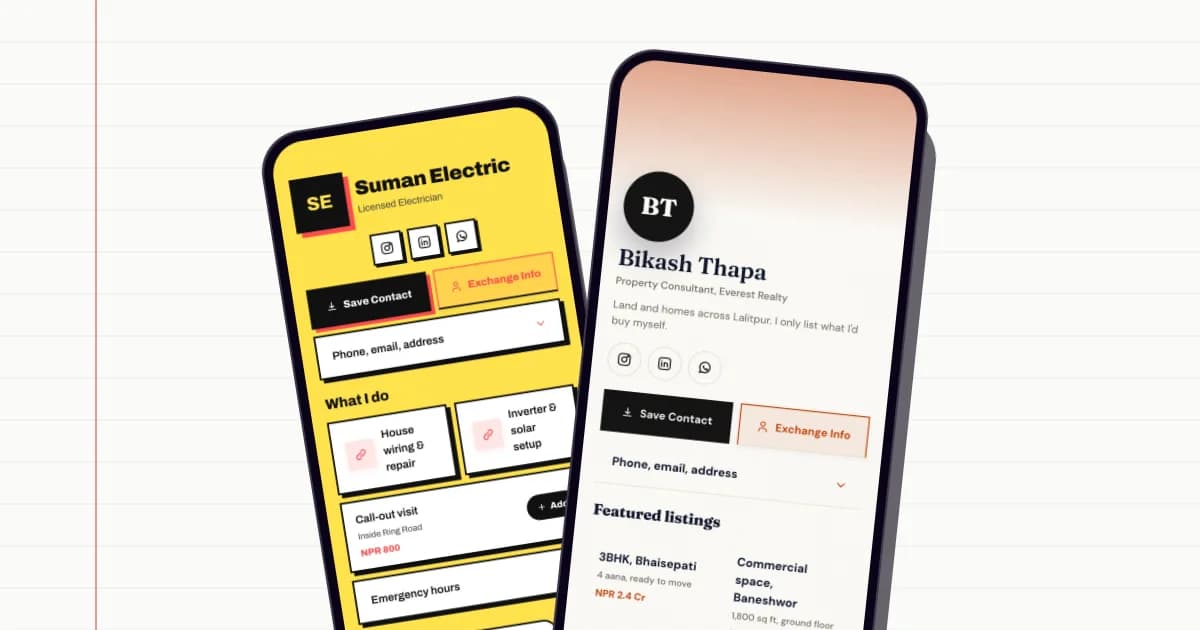
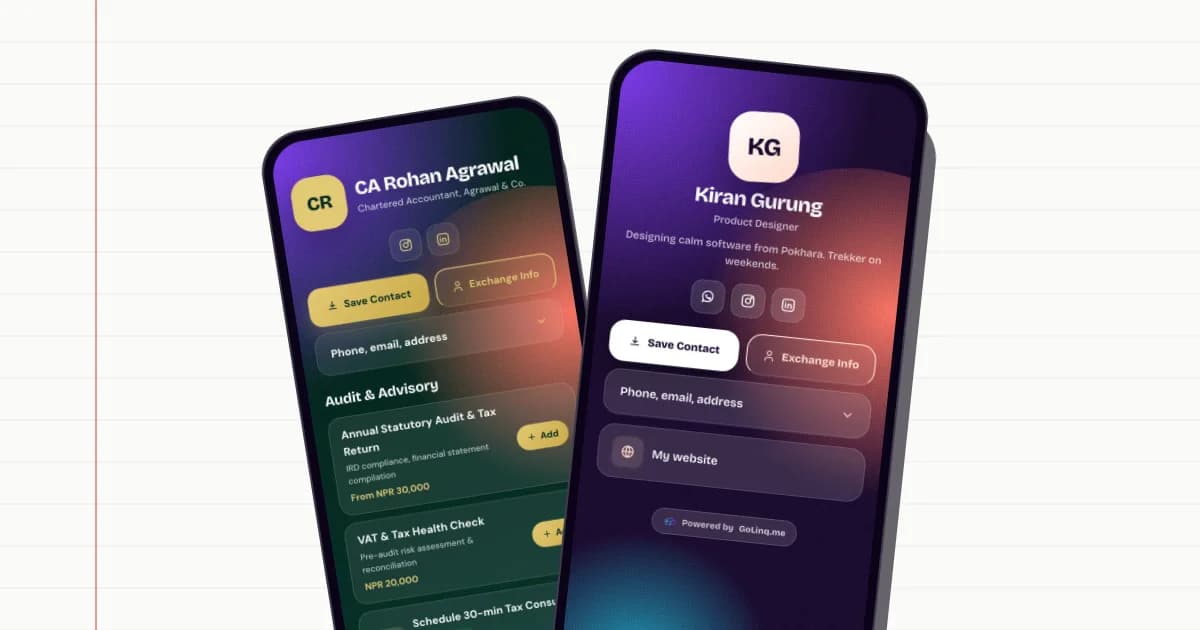
The chip stores a small piece of data, and for a business card that data is a web link such as golinq.me/@yourname. When someone taps the card, their phone reads the link and offers to open it. Your page opens in their browser, and they tap Save Contact to put you in their phone.
The card itself does not hold your name, number or photo. It only holds the link. That is a good thing: when your details change, you update your page, and the card keeps working without being rewritten.
Which phones can read it
Most mid-range and flagship Android phones sold in Nepal have NFC, though some budget models do not. On Android, NFC has to be switched on, usually in the quick settings panel. Many people have it on already because they use it for payments.
Recent iPhones (the iPhone XS and later) read NFC tags in the background whenever the screen is on and unlocked, so a tap near the top of the phone works. Older iPhones need the NFC reader opened from Control Centre, which few people know about.
What to buy
You do not need a special golinq.me card. Any standard NFC card, sticker, keyring or wristband that uses an NTAG213, NTAG215 or NTAG216 chip will hold your link. These are the most common chips and every phone that reads NFC can read them.
- NTAG213 has the least memory (around 144 bytes) but that is plenty for a short link. It is usually the cheapest.
- NTAG215 and NTAG216 hold more. You only need them if you want to store something longer than a link.
- PVC cards are the most common and can be printed like a normal business card.
- Metal and wooden cards feel premium, but metal can interfere with the signal. Buy from a supplier who builds metal cards specifically for NFC, and test one before ordering many.
- NFC stickers are useful for a shop counter, a laptop or the back of a phone case.
Ask the printer or supplier for blank, writable cards (not already locked to someone else's link), and ask them to confirm the chip type.
How to write your link to the card
Writing a link takes a couple of minutes and a free app. You do not need a computer or a card writer.
- Make your page first. If you do not have one yet, create your card and check it looks right on your phone.
- Copy your link. It looks like golinq.me/@yourname. Add ?src=nfc at the end, so it reads golinq.me/@yourname?src=nfc. This tells your golinq.me analytics that the visit came from a tap, and counts it with your scans.
- Install a free NFC writing app on your phone, such as NFC Tools, available for Android and iPhone.
- Choose Write, then add a record of type URL or link, and paste your full link including https://.
- Hold the card against the back of your phone (near the top on an iPhone, the middle on most Androids) until the app says it has written.
- Test it with a different phone, both an iPhone and an Android if you can.
Most apps also offer to lock the tag so nobody can overwrite it. Locking is permanent. Because your card only holds a link to a page you control, locking is usually safe, but only do it once you are sure the link is correct.
Using it well in person
The technology is simple; the habit is what makes it useful.
- Offer, do not grab. Say "can I tap my card on your phone?" and let them hold their own phone.
- Tap the right spot. If nothing happens, move the card slowly over the top back of the phone.
- Wait for the Save. Once your page opens, ask them to tap Save Contact while you are still there. That is the moment most paper cards are lost.
- Ask for theirs. Your page has an Exchange button where the other person can share their details back with you. See our guide to contact exchange after events.
NFC card or QR code?
They do the same job: open your page. NFC is quicker face to face and makes a stronger impression. A QR code works on every smartphone camera, can be printed on anything, and can be read from across a counter or off a poster.
In practice, use both. Tap when you are standing next to someone; show a QR code on your phone screen, card or counter stand when you are not. If you print QR codes on material that will last a long time, read about dynamic vs static QR codes first.
What it costs to run
The page behind the card can be free: the golinq.me Personal plan includes one card, Save Contact, a QR code and up to 50 saved contacts. If you meet a lot of people, Professional (NPR 299 a month) raises that to 2,000 contacts, syncs them with Google Contacts, and lets you run up to five cards, for example one for your company role and one for a side business. See pricing for everything included.
Make your golinq.me page today
Pick your handle, start from a template for your trade, and share it by QR, NFC or link. The Personal plan is free; see pricing for bookings, the shop and dynamic QR codes.